


How to Move Your Family Tree Data to a New PC Without Losing Important Records
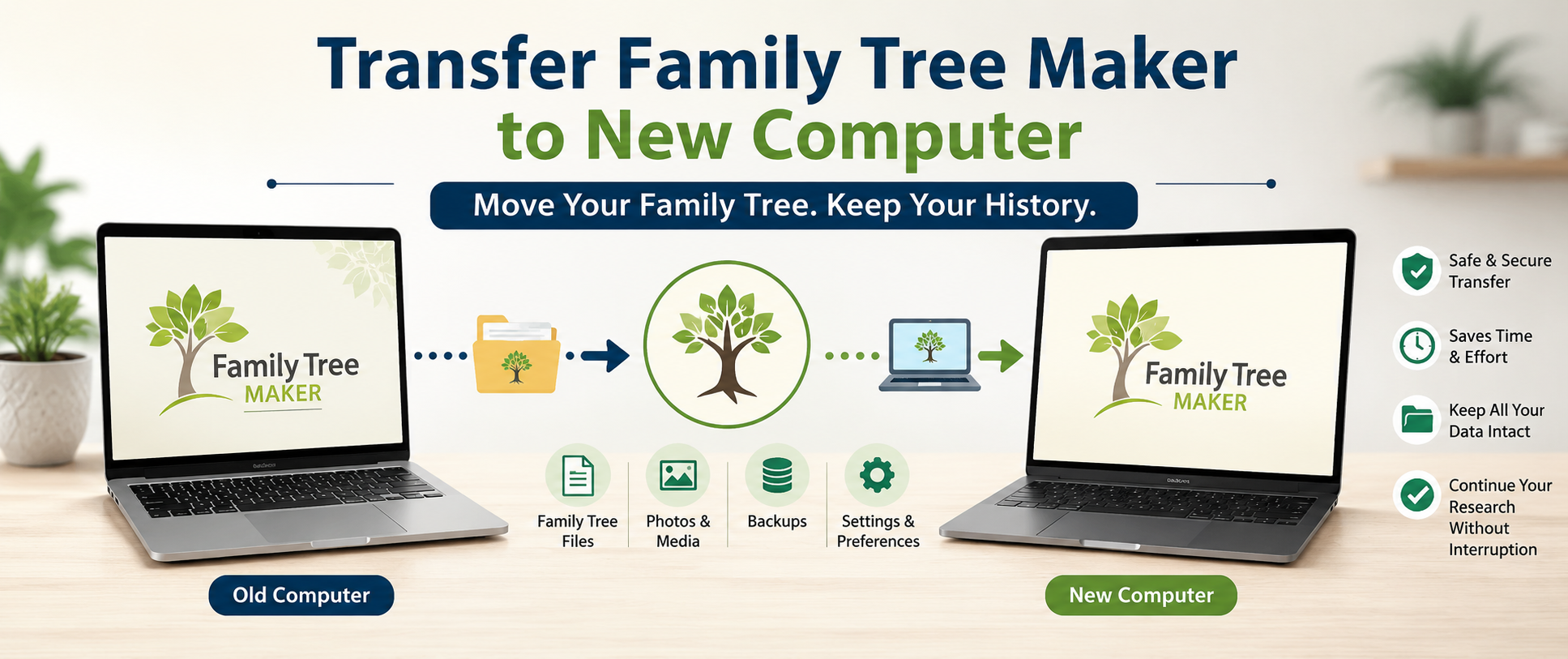
Family history research takes years of dedication, and protecting your valuable genealogy data is essential when upgrading to a new computer. Many users worry about losing family tree files, photos, documents, and research notes during the transfer process. Fortunately, with the right preparation and a few simple steps, you can safely move all your genealogy information and continue your research without interruption.
Why Proper Data Transfer Matters
Genealogy databases often contain thousands of records, photographs, scanned certificates, and historical documents. These files represent countless hours of research and organization. When changing computers, a careless transfer process can result in missing media files, broken links, or even lost family tree data.
A proper migration ensures that every family member profile, attached document, and research note remains intact. It also helps preserve your customized settings and preferences, making the transition smoother and more efficient.
Preparing Your Family Tree Files
Before moving any genealogy data, it is important to create a complete backup. A backup serves as a safety net in case something goes wrong during the transfer process.
Start by reviewing your family tree and making sure all recent changes have been saved. Verify that photos, documents, and media items are correctly linked. Once everything is up to date, create a full backup file and store it in a secure location such as a USB drive, external hard drive, or cloud storage service.
This step minimizes the risk of losing important information and provides peace of mind throughout the migration.
Installing Genealogy Software on the New Computer
After preparing your backup, install your genealogy software on the new computer. Make sure the software version is compatible with your existing family tree files. Keeping both systems updated can help prevent compatibility issues and improve overall performance.
During installation, follow the recommended setup instructions and ensure the program has the necessary permissions to access your files and folders. Once installation is complete, avoid creating a new family tree until your existing data has been restored.
Restoring Your Data Successfully
The next step is transferring your backup file to the new computer. Use your preferred storage method to copy the backup and restore it within the software.
During restoration, the program will rebuild your family tree database and reconnect media files. Depending on the size of your genealogy collection, this process may take a few minutes. After completion, review several family profiles, photos, and attached records to confirm that everything transferred correctly.
At this stage, many users choose to transfer Family Tree Maker to new computer to continue their genealogy projects with improved hardware, better performance, and updated system security.
Verifying Photos and Media Files
One of the most common issues after moving genealogy data involves missing media items. Photographs and documents may appear disconnected if they were not included in the backup or if file paths changed during the transfer.
Carefully review your media collection after restoration. Open several photos and scanned records to ensure they display correctly. If any files appear missing, locate them from your original backup source and reconnect them to the appropriate family profiles.
Taking time to verify media files helps maintain the completeness and accuracy of your family history project.
Updating Preferences and Settings
Many genealogy enthusiasts customize reports, charts, workspace layouts, and research preferences. After restoring your family tree, spend a few moments reviewing these settings on the new computer.
You may need to update printer configurations, folder locations, backup schedules, and display preferences. These adjustments can improve workflow efficiency and create a familiar working environment on your new system.
Customizing settings early can save time and reduce frustration during future research sessions.
Common Challenges and Their Solutions
Although most transfers are straightforward, some users encounter minor difficulties. These issues can include incomplete backups, missing media files, or software activation problems.
The best way to avoid these challenges is to create a verified backup before beginning the migration. Keeping a secondary backup copy on an external drive is also recommended. If problems occur, having multiple backup versions can help restore lost information quickly.
Regular maintenance, software updates, and routine backups further reduce the risk of future data loss.
Benefits of Moving to a New Computer
Upgrading to a newer computer offers several advantages for genealogy researchers. Modern systems provide faster processing speeds, larger storage capacity, and improved security features. These improvements make it easier to manage large family trees, generate reports, and organize extensive media collections.
A new computer can also enhance productivity by reducing loading times and improving overall software responsiveness. This allows researchers to focus more on discovering family history and less on technical limitations.
Conclusion
Moving your genealogy data to a new computer does not have to be stressful. With proper planning, complete backups, and careful verification, you can transfer your family history project safely and efficiently. By following the correct process, your valuable records, photos, and research notes remain protected throughout the transition. Once everything is restored and verified, you can continue exploring your family's past with confidence and enjoy the benefits of a faster, more reliable computer.

 Arabic
 French
 Spanish
 Portuguese
 Deutsch
 Turkish
 Dutch
Dutch
 Italiano
 Russian
 Romaian
 Portuguese (Brazil)
 Greek
Greek